To add an element into a dimension , go to the Data and Models section of IBM Planning Analytics Workspace.
Open the workbench and highlight the Dimensions selection.
Right click on the dimension you want to edit and select Edit Dimension.
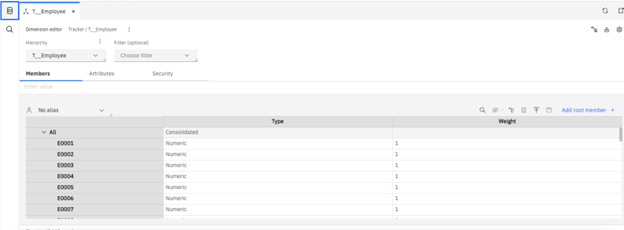
This will open the dimension editor, where you can view the elements that make up the dimension.
Adding a new element #
To add a new employee, select an existing member. In the example below, the element E0062 has been selected.
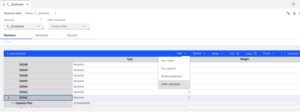
From the ribbon, choose:
Add > After Selection
This will create a new element beneath the selected member.
Assigning attributes #
Once the new element has been added, attributes can be assigned.
Attributes are often used to help process or categorise data. For example:
- An Account may be identified as an Asset or Liability
- A date may be identified as a weekday or weekend
- An employee may have a specific role or skill set
In this example:
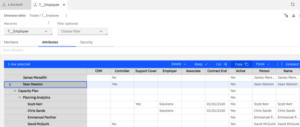
- The new element E0063 has been given the name Sean Newton
- The Active attribute has been set to Yes
- The Controller Skills attribute has also been set to Yes
Adding the element into a roll-up #
Once created, the new element will be visible within the dimension structure.
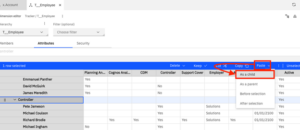
The element can then be added into additional roll-ups. In this example, element E0063 is copied into the Controller roll-up.
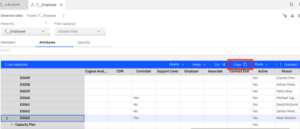
To do this, copy the element and choose:
Paste as Child
against the roll-up element where the value should consolidate.
Important note #
Dimension changes in IBM Planning Analytics happen in real time, meaning there is no two-phase update process. Once changes are made, they are live immediately.
For this reason, it is often best practice to make structural dimension changes within a development environment first.
The updated dimension files can then be moved into the live environment, including:
<Dimension Name>.dim}ElementAttributes_<Dimension Name>.dim}ElementAttributes_<Dimension Name>.cub
The server can then be restarted with the updated files in place.
Final thought #
Keeping dimensions and attributes well maintained helps ensure your Planning Analytics model remains organised, scalable, and easier to report from.
If you’d like help improving the structure or maintainability of your Planning Analytics environment, talk to us, we’re always happy to help.


