Consolidating submissions in IBM Controller Web is a key step in the financial close process. This article takes you through the steps you need to complete a consolidation job from within the web interface.
What You’ll Need #
Before you start, ensure:
-
You have access to Controller Web with appropriate rights.
-
The relevant submission(s) have already been imported.
-
No other critical batch jobs will interfere with consolidation.
Step-by-Step: Consolidating a Submission #
-
Open Submission Status
-
Navigate to the Submission Status window in Controller Web.
-
Locate the submission you want to consolidate.
-
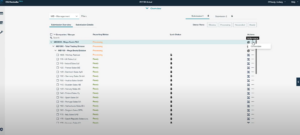
- Access Consolidation Options
-
-
In the Actions column for the chosen submission, select the ellipsis (…) icon.
-
This opens the Consolidation Parameters window.
-
-
Review and Adjust Parameters
-
This window will show pre-populated fields including:
-
From/To Periods
-
Actuality
-
Group values
-
Consolidation type
-
-
Adjust any settings if necessary for your consolidation run.
-
-
Consolidation Options
-
Click Next to move to the Consolidation Options screen.
-
Review the translation method and other settings.
-
-
Select Additional Options
-
Choose any applicable options before running consolidation:
-
Force consolidation regardless of status
-
Include allocations
-
Include advanced formula calculations
-
Include user-defined business rules
-
-
-
Run Consolidation
-
Click Run consolidation, then Confirm.
-
The consolidation job is added to the batch queue.
-
You will see a batch number indicating the job has been queued.
-
-
Finish
-
Click Close.
-
The consolidation process is now initiated and will run based on your system’s batch processing configuration.
-
Tips #
-
Check Batch Status: After submission, monitor the batch queue for completion and any warnings.
-
Translation Methods: Review the chosen translation option if consolidating entities reporting in different currencies.
-
Re-Run When Needed: If your first consolidation run shows inconsistencies, adjusting parameters and re-running can resolve them.


