Over time, most IBM Planning Analytics models grow. New cubes are added, and older ones remain but are rarely used.
In this guide, we show how to hide cubes from users without removing any data.
Why hide cubes? #
In many systems, unused cubes still need to be retained for historical or audit purposes.
However, showing these to users can increase confusion, make navigation more difficult and lead to users accessing the wrong data. A better approach is to control visibility using security.
Step 1: Identify unused cubes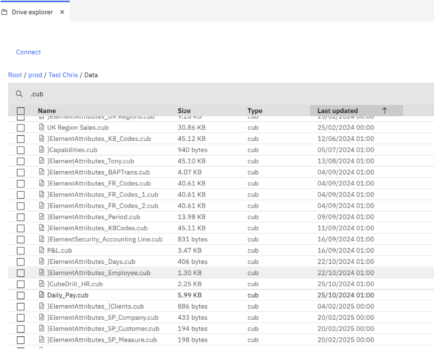 #
#
To find cubes that are no longer actively used:
-
Open Drive Explorer
-
Connect to your Planning Analytics server
-
Navigate to your database folder (e.g.
Root/prod/tm1serv/Data) -
Filter files using
.cub -
Sort by Last Updated.
This helps highlight cubes that haven’t been used recently
Step 2: Update cube security #
To hide cubes from users:
-
Open the }CubeSecurity cube
-
Select the relevant user group
-
Set access:
-
Required cubes →
READorWRITE -
Unused cubes → leave blank (no access)
-
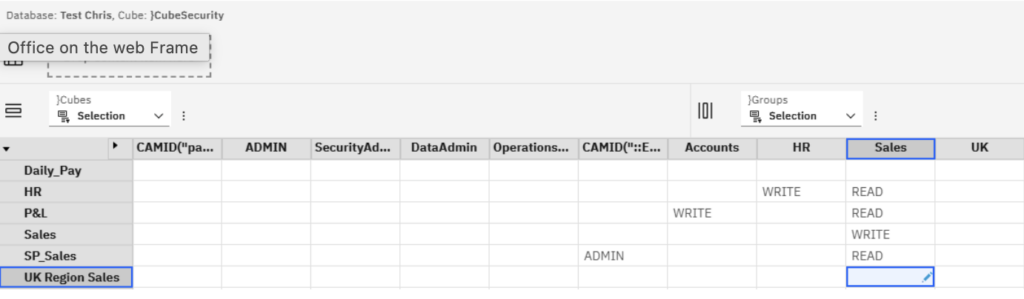
Once applied, those cubes will no longer appear in the user’s cube list
Step 3: Re-enable access if needed #
If a user needs access again:
-
Simply change the cube permission to
READorWRITE -
The cube will reappear automatically
An Alternative approach #
For a cleaner long-term model, you may want to:
-
Take a copy of the database (e.g. audit version)
-
Remove unused cubes from the live model
This would make it easier to maintain, save memory and keep historical data available for audits.
Final thought #
Hiding cubes is a quick way to simplify your model without losing data.
If your users are struggling to navigate Planning Analytics, this is often an easy win. For help reviewing your Planning Analytics setup, contact us, we’re always happy to help.


