Search site:

Aramar
  • About Us
  • Our Team
  • Join the Team
  • Insights & Updates
  • Talk to Us
  • Financial Reporting
    • Financial Reporting.

      • IBM Planning Analytics
      • IBM Controller
      • IBM Cognos Analytics
      • Fast Financials
      • Lease-16
      • IBM Planning Analytics.

        IBM Planning Analytics is business performance management software that combines budgeting and AI-enhanced forecasting with intuitive analysis, reporting and workflows.

      • IBM Controller

        IBM Controller delivers accurate, fully auditable financial results, a guided period close user experience, and automatic consolidation and reporting.

      • IBM Cognos Analytics

        IBM Cognos Analytics is infused with AI and offers an intuitive and user-friendly experience.

      • Fast Financials

        Our solution for Financial Consolidation, Reporting, Cash Flow and Planning

      • Lease-16

        Our accounting IFRS 16 and FRS 102 Lease management software solution

    • IBM Planning Analytics
    • IBM Controller
    • IBM Cognos Analytics
    • Fast Financials
    • Lease-16
  • ITFM
    • IBM Apptio.

      • IBM Apptio
      • IBM Apptio

        Take control of your IT spending and plan with confidence

    • ESG Reporting
      • IBM Envizi.

        • IBM Envizi
        • IBM Envizi

          Turn ESG data into clear, auditable insights and compliant reports.

      • IBM Envizi
    • Customer Success
      • Customer Success.

        • Customer Success Programme
        • Customer Stories
        • Customer Success Programme

          All our customers join our success program.

        • Customer Stories

          Don’t just take our word for it…

    • Support
      • Support & Delivery.

        • Implementation and Development
        • Cloud Migration
        • Support
        • IBM Licensing
        • Expert-Led Training
        • Implementation and Development

          From practical, hands-on development through to strategic guidance, our team of specialists is here to help.

        • Cloud Migration

          We have unrivalled experience in helping customers migrate their Business Analytics installations to the Cloud and helping them to take advantage of all IBM SaaS has to offer.

        • Support

          We are proud of our dedicated, friendly support desk, providing IBM Certified support and application support.

        • IBM Licensing

          As an Gold IBM partner, Aramar are able to negotiate the best terms with IBM on software licences and can provide wrap-around support to help you get the best from the products you have purchased.

        • IBM Cognos Analytics Training

        • IBM Controller Training

      • Implementation and Development
      • IBM Cloud Migrations
      • Support
      • IBM Licensing
    • Knowledge Centre
      • Aramar Knowledge.

        • Aramar Specialist Knowledge
        • Expert insight for IBM users

          Explore upgrade guidance, how-to guides and technical best practice across the IBM suite. Practical, real-world insight to help you solve problems faster and get more from your IBM investment.

      • Fast Financials
      • Financial Planning and Analysis 
      • Lease Accounting
    • Our Team
    • Join the Team
    • Insights & Updates
    • Talk to Us

    IBM Planning Analytics

    41
    • How to: Use a Cube View in Planning Analytics for Excel (PAfE)
    • How to: Create a Cube in IBM Planning Analytics
    • How to: Fix Views That Need Refreshing in IBM Planning Analytics
    • How to: Hide Cubes from Users in IBM Planning Analytics
    • Aramar Tips: Working with Subsets in IBM Planning Analytics
    • How To: Subscribe to IBM Security Bulletins for Planning Analytics, Cognos Analytics and Controller
    • How to: Enable dark mode in Planning Analytics Workspace
    • How to: Compare scripts in Planning Analytics Workspace
    • How to: Review process changes in Planning Analytics Workspace
    • How to: Check whether a Dimension exists in IBM Planning Analytics
    • How to: Control Who Has Access to the Planning Analytics Assistant
    • 5 Top Tips for Working with Planning Analytics for Excel (PAfE)
    • How to: Add Spacer Rows and Columns to Universal Reports in Planning Analytics for Excel (PAfE)
    • How to: Load a file via process in Planning Analytics Workspace (PAW)
    • How To: Find out your Planning Analytics Version using Workbench (Planning Analytics on Cloud)
    • How To: Create a simple hierarchy in Planning Analytics
    • How to: Change maximum login attempts to Planning Analytics on Cloud
    • How to: Using the While statement Turbo Integrator Process in IBM Planning Analytics
    • How to: Change a Dimension Element Weight in Planning Analytics via TI process
    • Aramar Tips: Moving Databases in Planning Analytics
    • How to: Mapping a CSV data source directory in IBM Planning Analytics on Cloud
    • How to: Mapping a Network Drive between Live and Development Environments in Planning Analytics on Cloud
    • How To: Resolve ODBC error ‘unable to open connection to database’ in IBM Planning Analytics 
    • How To: Investigating issues using the TM1 Server Log
    • How To: Check the version of IBM Planning Analytics for Excel
    • How to: Check and manage your IBM Planning Analytics licence usage vs. your licence entitlement
    • How to: Change the display row limit in Planning Analytics for Excel
    • How To: Set up Inactivity Timeout Sessions in IBM Planning Analytics
    • How To: Install Planning Analytics for Excel (PAfE)
    • How to: Check the Security of a Dimension in IBM Planning Analytics
    • Aramar Tips: Using PowerShell in Planning Analytics
    • Fundamentals: Feeders in IBM Planning Analytics
    • Fundamentals: DBRW in Planning Analytics
    • How to: Create a Dimension in IBM Planning Analytics
    • Fundamentals: What are Dimensions in IBM Planning Analytics?
    • How to: Edit Dimensions in IBM Planning Analytics
    • How to: Create Subsets driven by another Dimension in Planning Analytics
    • Aramar Tips: Creating documentation IBM Planning Analytics
    • Aramar Tips: Checking your parameters with a Planning Analytics TI Process
    • Aramar Tips: Analysing Data in IBM Planning Analytics for Excel
    • How to: Add a new Element to an existing Dimension in IBM Planning Analytics

    IBM Cognos Analytics

    1
    • How To: Subscribe to IBM Security Bulletins for Planning Analytics, Cognos Analytics and Controller

    IBM Controller

    29
    • When: Does the FAP Publish Client from Controller Need Updating?
    • How to: Create Multi Period Import Specs in IBM Controller Web
    • How To: Subscribe to IBM Security Bulletins for Planning Analytics, Cognos Analytics and Controller
    • Weekly reporting vs period close in IBM Controller: what to consider
    • How to: Audit the Licenced Number of Controller Users
    • How to: Reconcile Data by Company in IBM Controller Web
    • Aramar Tips: The Benefits of Using IBM Controller Web for Data Import via Import Specifications
    • How to: Improve your Controller Excel Report Performance
    • Fundamentals: What’s the difference between IBM Controller Web and IBM Controller Classic?
    • How to: Change the reporting currency belonging to a local subsidiary (or reporting entity) in IBM Controller
    • How to: Effectively structure user security in IBM Controller
    • How to: Run an internal database optimise in IBM Controller
    • How to: Schedule an internal optimise in IBM Controller
    • How to: Check currency translation using a standard report in IBM Controller
    • How to: Drill Data within IBM Controller
    • How to: Change the reporting currency belonging to the group consolidation in IBM Controller
    • How To: Change the method of translation applied to the P&L statement, or create different P&L translation views from the same source data in IBM Controller
    • How to: Check when a Company was last updated (and by who) from within IBM Controller Web
    • How to: Consolidate a Submission in IBM Controller Web
    • How To: Log into Citrix for the first time using IBM Controller on Cloud
    • How To: Interrogate the backend SQL table using IBM Controller
    • How To: Fix the Intercompany button not appearing in IBM Controller
    • How to: Check the size of your IBM Controller database
    • How to: Clear the local cache within Controller
    • How to: Condense XACCLOCK Table
    • How to: Save Time Posting Journals on Accounts That Reconcile to Each Other
    • How to: Add Companies to Linked Structures Directly from the Company Structure Menu
    • How to: Back Up an IBM Controller Database
    • How to: Navigate the Backend SQL tables within IBM Controller

    Extra Insights

    3
    • How To: Subscribe to IBM Security Bulletins for Planning Analytics, Cognos Analytics and Controller
    • How to: Manage Users in IBM MySupport
    • Aramar Tips: 5 Easy tips to consider when adding commentary to your financial reports 
    View Categories
    • Home
    • knowledge-share
    • IBM Planning Analytics
    • How to: Fix Views That Need Refreshing in IBM Planning Analytics

    How to: Fix Views That Need Refreshing in IBM Planning Analytics

    If you have a view in IBM Planning Analytics that only shows the correct data after a manual refresh, it can be frustrating for users and difficult to trust.

    This is something we often see in models that were originally built in legacy TM1, where older functions are still being used in view definitions.

    The good news is that it is usually straightforward to fix.


    What causes the issue? #

    In many cases, the view is using a dynamic subset created with:

    TM1SubsetToSet

    While this works, it does not always evaluate dynamically when the view is opened. This can result in:

    • Views showing outdated data
    • Users needing to manually refresh to see correct results

    How to fix the issue #

    The solution is to replace the subset reference with the underlying MDX expression, so the view evaluates correctly every time it is opened.


    Step 1: Identify the subset used in the view #

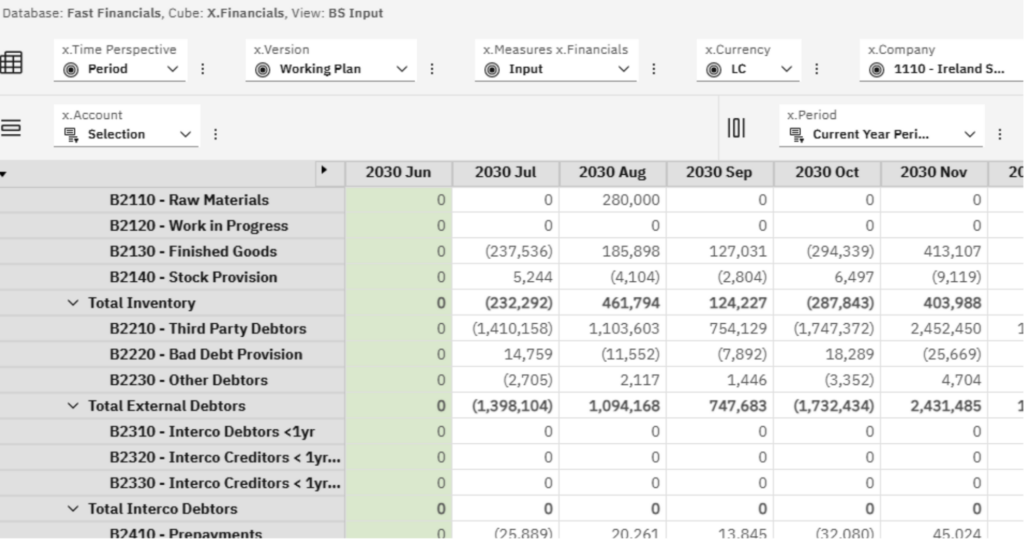
    Open the view that is not returning the correct data and check which subset is being used.

    For example, in the health check, the view “BS Input” uses the subset:

    “Current Year Periods Onwards”

    Step 2: Open the subset editor #

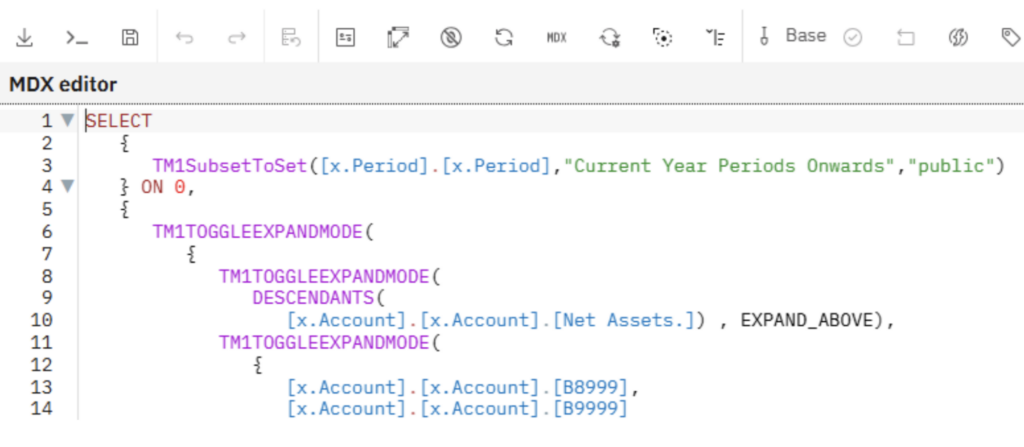
    Next, open the subset that is being referenced.

    In the opened view, open edit MDX page.

    This shows the logic behind how the subset is dynamically generated.

    Step 3: Copy the MDX definition #

    Copy the full MDX expression from the subset.

    This is the key step, as we will use this directly in the view instead of referencing the subset.


    Step 4: Paste the MDX into the view #

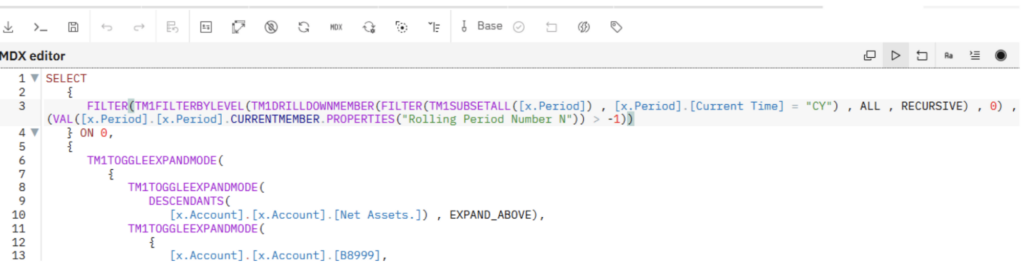
    Go back to the view and open the MDX editor.

    Paste the copied MDX expression into the view definition and apply it.

    Once applied, the view will now evaluate the logic directly, rather than relying on the subset.

    Step 5: Apply this across all relevant dimensions #

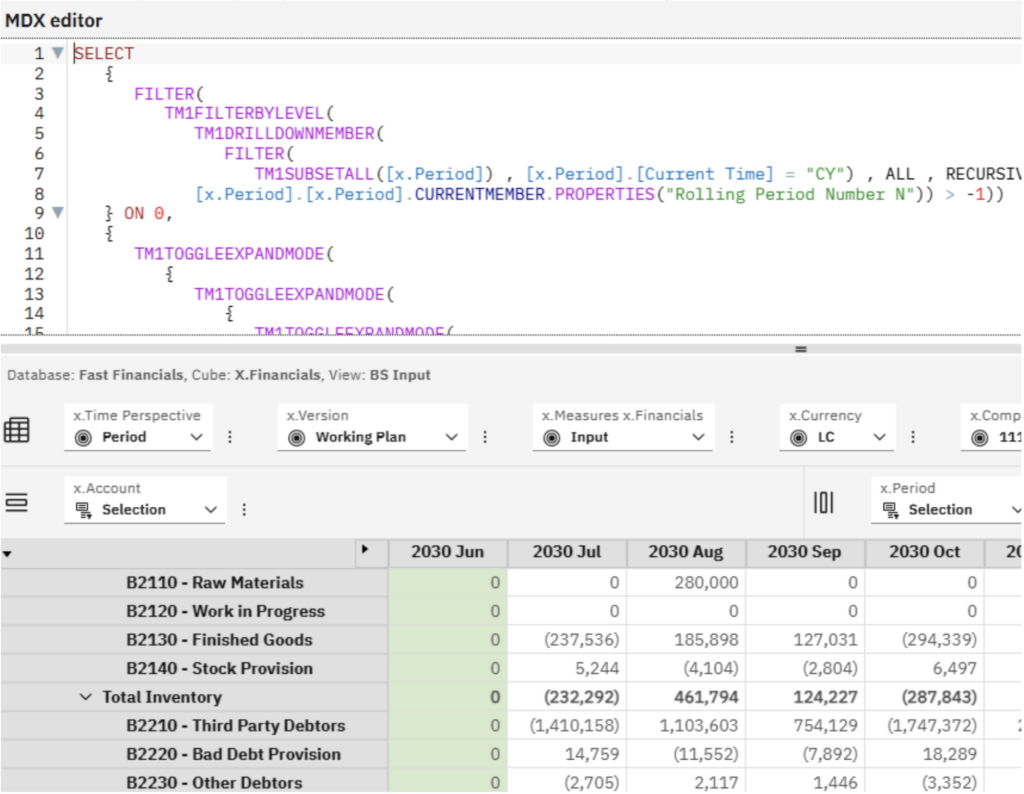
    If the view uses multiple dynamic subsets, repeat this process for each dimension.

    In our example, this approach was applied across the full view to ensure consistent results

    What this fixes #

    After applying the MDX directly:

    • The view evaluates correctly when opened
    • No manual refresh is required
    • Users can trust the data they are seeing

    Final thought #

    If users are regularly refreshing views to “fix” the numbers, it is often a sign that the view logic needs updating.

    Replacing subset references with MDX is a simple change, but it can make a big difference to both accuracy and user confidence.

    For help reviewing your Planning Analytics setup, contact us, we’re always happy to help.  

    Updated on April 2, 2026

    Was this helpful?

    • Happy
    • Normal
    • Sad

    Share This Article :

    • Facebook
    • X
    • LinkedIn
    How to: Create a Cube in IBM Planning AnalyticsHow to: Hide Cubes from Users in IBM Planning Analytics
    Sections
    • What causes the issue?
    • How to fix the issue
      • Step 1: Identify the subset used in the view
      • Step 2: Open the subset editor
      • Step 3: Copy the MDX definition
      • Step 4: Paste the MDX into the view
      • Step 5: Apply this across all relevant dimensions
    • What this fixes
    • Final thought

    Our Accreditations and Partners

    Aramar works with customers of all sizes, from a range of industries helping them with Business Analytics, Business Process, Sustainability and AI solutions using IBMs leading software solutions.

    email contactus@aramar.co.uk

    • LinkedIn
    • YouTube

    Registered Address:
    124 City Road,
    London,
    EC1V 2NX

    © Aramar 2026. All Rights Reserved.

    Terms of use Privacy Policy

    Website and Marketing by Unity Online