Planning Analytics Workspace includes a dark mode option for the Workbench script editor. This allows users to switch from the standard light interface to a darker theme when writing or reviewing processes. #
Dark mode can make the editor easier to use for long periods and may help reduce eye strain when working with scripts.
How to enable dark mode #
-
Open Planning Analytics Workspace
-
Go to Workbench
-
Open a process and select the Script tab
-
Select the Dark mode button
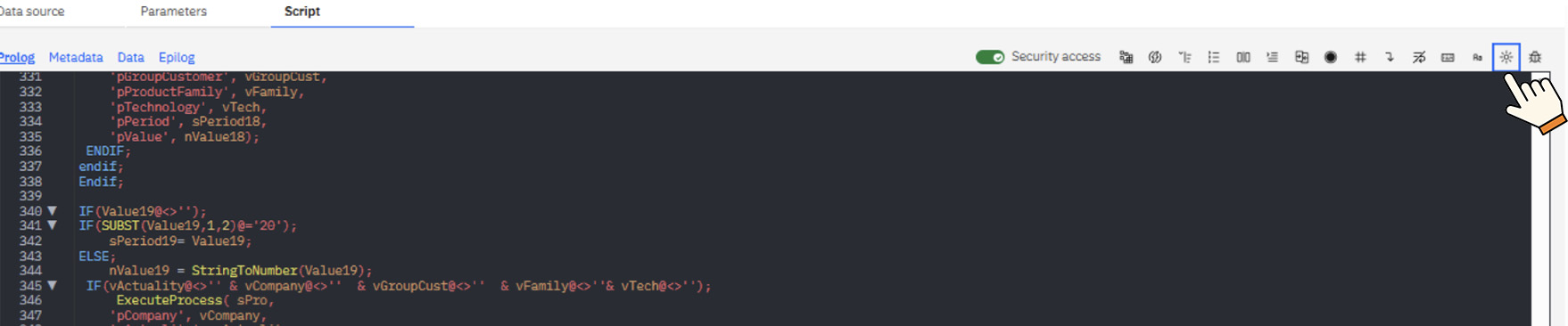
The script editor will switch to a darker colour scheme while keeping the same functionality.
Why use dark mode #
Dark mode can be useful when:
-
Working for long periods in the script editor
-
Using multiple monitors
-
Working in low-light environments
-
Reviewing large scripts
Display settings do not affect the process itself and only change how the editor appears for the current user.
If you would like help getting the most from Planning Analytics Workspace, we can help.


