The Planning Analytics Assistant introduces generative AI capabilities into IBM Planning Analytics, allowing users to explore and understand data using natural language and AI-generated explanations.
As organisations adopt AI-enabled features, a common and important question arises:
how do you control who can access and use the Planning Analytics Assistant?
Recent Planning Analytics releases introduced the ability to manage access at a user level, giving administrators greater control over governance, licensing, and appropriate use.
Why Access Control Matters #
By default, the Planning Analytics Assistant is disabled for all users. Access must be explicitly enabled by an administrator.
This approach allows organisations to:
-
Maintain governance over AI functionality
-
Align access with licence entitlements
-
Ensure AI features are available only to appropriate users
-
Introduce AI gradually and deliberately across teams
Access control helps balance innovation with trust, security, and accountability.
How to Enable or Disable Access to the Planning Analytics Assistant #
Access to the Planning Analytics Assistant is managed through Planning Analytics Administration by users with the appropriate administrative permissions (such as subscription or environment administrators).
Steps to manage access #
-
Open Planning Analytics Administration
-
Select Users and Groups
-
Navigate to the Users tab
-
Select the relevant user
-
Open the Capabilities tab
Within the Capabilities section, administrators can:
-
Enable access to the Planning Analytics Assistant for that user
-
Disable access if it is no longer required
By default, this capability is switched off for all users until an administrator enables it.
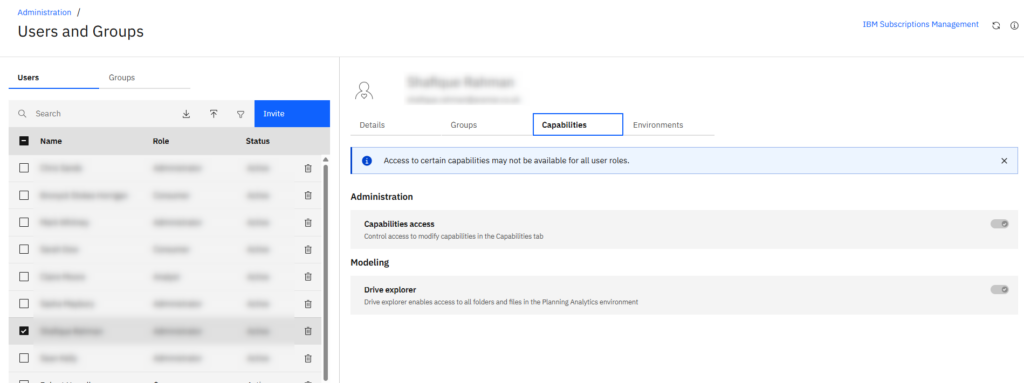
-
Location: Planning Analytics Administration
-
Follow: Users & Groups → User selected → Capabilities tab
(Note: This screenshot will only be visible to users with the correct admin role)
What Users See Once the Planning Analytics Assistant Is Enabled #
Once access has been enabled by an administrator, users will begin to see Planning Analytics Assistant features directly within Planning Analytics Workspace.
Using the Assistant in Planning Analytics Workspace #
When enabled:
-
Users can right-click on a data cell
-
Select Explain cell (AI)
![Explain cell [AI], table, mega meats, PA assistant](https://www.aramar.co.uk/wp-content/uploads/2026/01/image-6-1024x464.png)
-
View an AI-generated explanation of how the value is derived
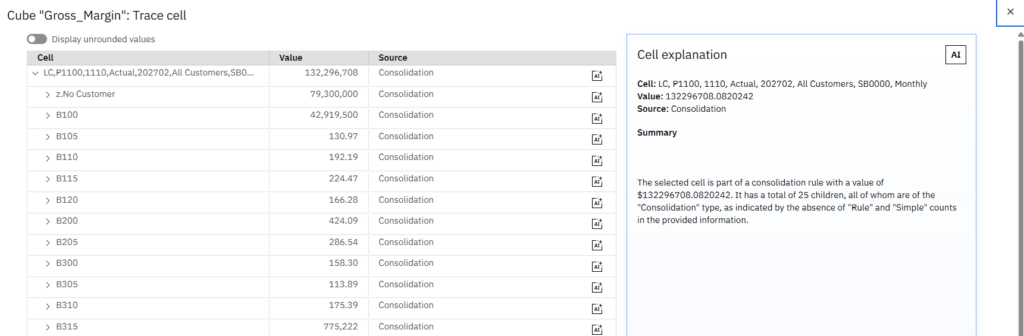
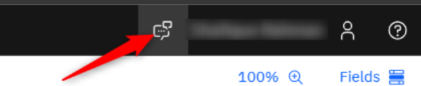
Another, even easier, method to connect with the AI assistant is to click on the icon next to the user name, no need to drill in any cells.
The Assistant provides:
-
Visibility into source data
-
Insight into consolidation or calculation logic
-
A plain-English summary to help users understand the number more quickly
This is particularly useful for:
-
Reviewing results
-
Supporting analysis discussions
-
Reducing reliance on technical formulas or cube knowledge
Why Some Users Can’t See the AI Capability Toggle #
A common point of confusion is that users may be able to use the Planning Analytics Assistant but not see the AI capability toggle in Administration. That is expected.
The ability to use the Assistant and the ability to manage access to it are intentionally separated. The AI capability toggle is only visible to users with specific administrative roles, such as subscription or environment administrators.
Standard business users and analysts will not see this setting, even when the Assistant is enabled for them. This design ensures AI access is centrally governed, while still allowing enabled users to benefit from the Assistant in their day-to-day work.
If you’d like help reviewing your Planning Analytics setup, enabling the Assistant, or deciding which users should have access, our team is happy to help.


